
BlastIT is a sophisticated mass notification system designed to streamline critical communications across various channels, including SMS, email, and voice calls. Developed by OnPage, BlastIT enables organizations to efficiently disseminate urgent messages to a wide audience, ensuring timely delivery and acknowledgment.
Key Features
 Multi-Channel Messaging
Send messages simultaneously via SMS, email, and voice calls, ensuring broad reach and redundancy.
Editable Templates
Create and customize message templates in advance to expedite communication during emergencies.
Department and Member Lists
Organize recipients into specific groups, allowing targeted notifications to particular departments or teams.
Audit Trails
Track message delivery and acknowledgments in real-time, providing administrators with confirmation receipts to monitor the status of notifications.
Use Cases
 Emergency Response
Rapidly alert first responders and relevant personnel during critical events to facilitate prompt action.
Healthcare
Notify healthcare teams and stakeholders immediately during crises to avert disasters.
Higher Education
Ensure faculty, students, and vendors receive simultaneous messages about time-sensitive events, enhancing campus safety.
Government
Enable local governments to inform the public easily before, during, and after potential crises, ensuring community safety.
BlastIT is trusted by various organizations, including cities, communities, universities, and more, to enhance their emergency communication management plans.
By leveraging BlastIT, organizations can improve the effectiveness of their business continuity programs and ensure that critical information reaches the right individuals promptly.
OnPage BlastIT Enterprise – How To
Administration Tab
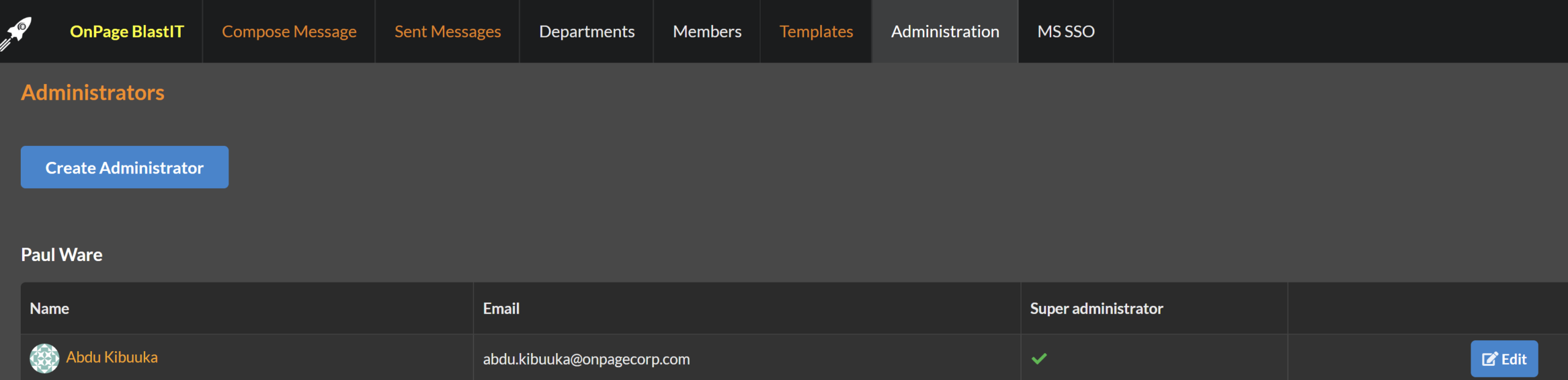
How do I create system administrators?
o Click on the Administration tab
o Click on Create Administrator
o Fill in the form
o Click Save
o A welcome email is sent to the administrator with login instructions
How do I grant permissions to administrators?
o When creating the administrator, you can choose specific permissions you would like to
grant or leave empty to deny.
o For example, if you would like to grant the administrator permission to create and edit
administrator accounts, simply select it when creating the admin.
How do I edit the permissions of an administrator?
o Click on the Administration Tab
o Click on Edit beside the administrator you want to rearrange
o Manage the permissions and click save
How do I delete an administrator?
o Click on the Administration Tab
o Click on Delete next to the administrator
o Confirm deletion and if you change your mind, simply click Cancel
Templates Tab
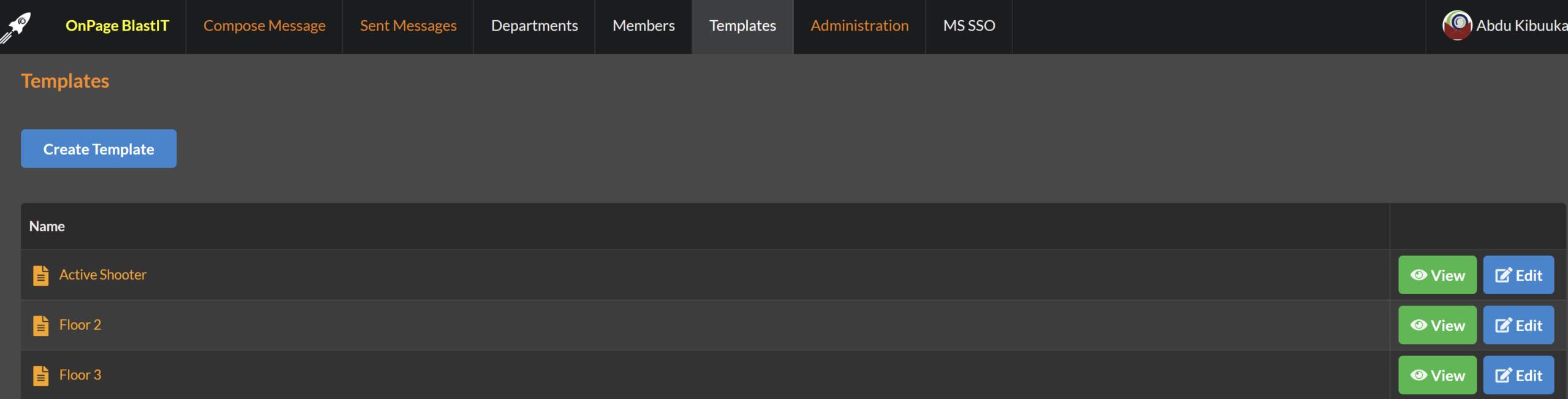
How do I create a Template?
o Click on the Templates Tab
o Click on Create Template
o Fill in the form
o Click Save
How do I edit a template?
o Click on the Templates Tab
o Look for the template you want to edit
o Click on Edit
o Make changes and click save
How do I delete a template?
o Click on the Templates Tab
o Click on Delete next to the template
o Confirm deletion and if you change your mind, simply click Cancel
Departments Tab
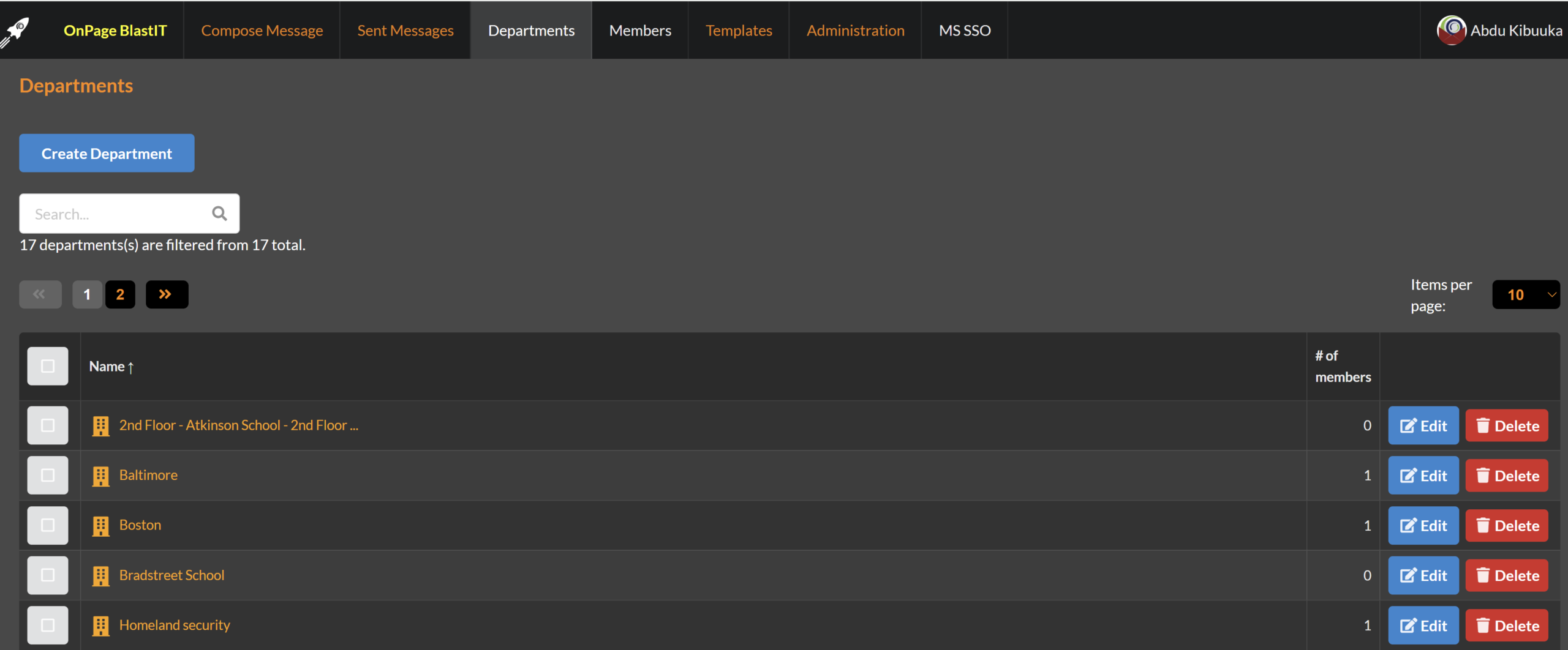
How do I create a Department?
o Click on the Departments Tab
o Click on Create Department
o Fill in the form
o Click Save
How do I edit a department?
o Click on the Departments Tab
o Click on Edit
o Make changes and click Save
How do I delete a department?
o Click on the Departments Tab
o Click on Delete next to the department
o Confirm deletion and if you change your mind, simply click Cancel
Members Tab
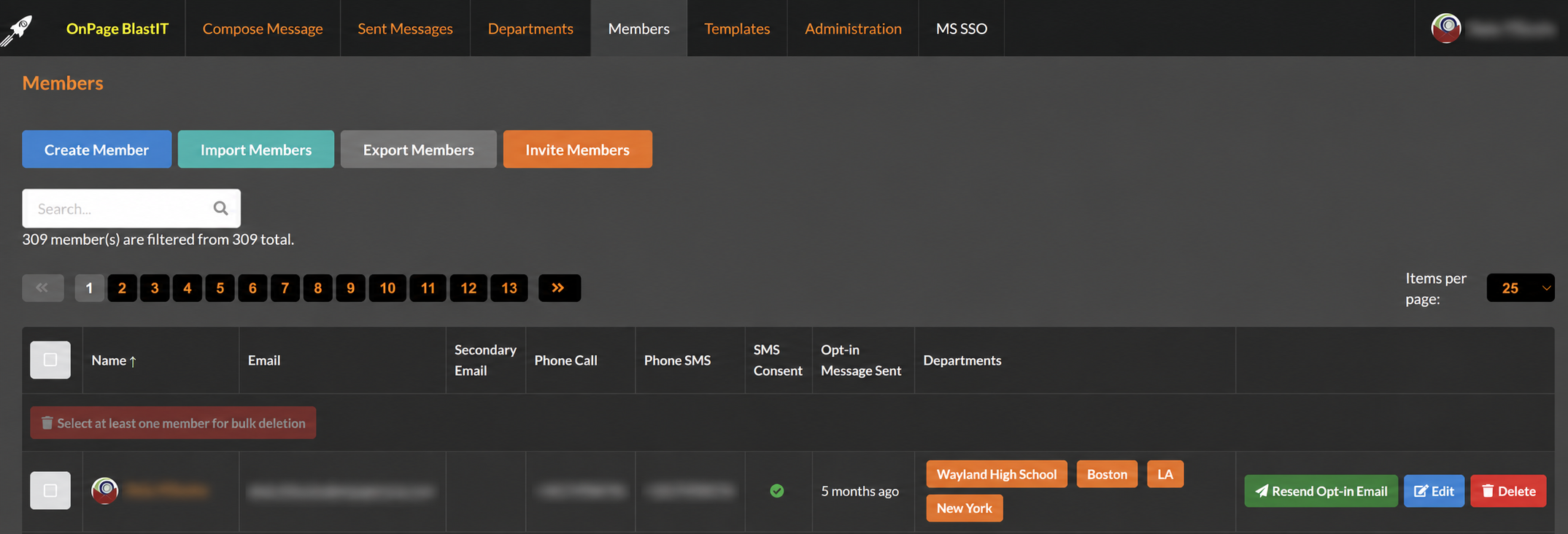
How do I create a Member?
o Click on the Members Tab
o Click on Create Member
o Fill in the form
o Click Save
How do I edit a member?
o Click on the Members Tab
o Click Edit on the right side of the member you wish to revise
o Make changes and click Save
How do I import a bulk number of members?
*Make sure before you start importing, you have created a CSV file of your members
with columns such us First Name, Last Name, Email Address, Secondary Email, Phone
Number, Mobile Number, Array of departments.
o Click on the Members Tab
o Click on Import Members
o Click on Choose CSV file and select your members CSV file
o Check that columns contain the proper information
o Click Import at the bottom
How do I export my members?
o Click on the Members Tab
o Click on Export Members
o A CSV file will be automatically generated by your browser
o Click open
How do I add members to a department?
o Click on the Members Tab
o Click Edit next to the member
o On the right side under “Member of”, choose the department
o Click Save
How do I delete a member?
o Click on the Members Tab
o Click on Delete next to the member
o Confirm deletion if you change your mind, simply click Cancel
How do I delete more than one member at a time?
o Click on the Members Tab
o Click Bulk
o Confirm deletion if you change your mind, simply click Cancel
Compose Messages
• Click on the Compose Message Tab
• Check the recipient or department
• Select a Template or manually enter text
• Choose transportation method whether by primary email, secondary email, native SMS and
phone call
• Click Send
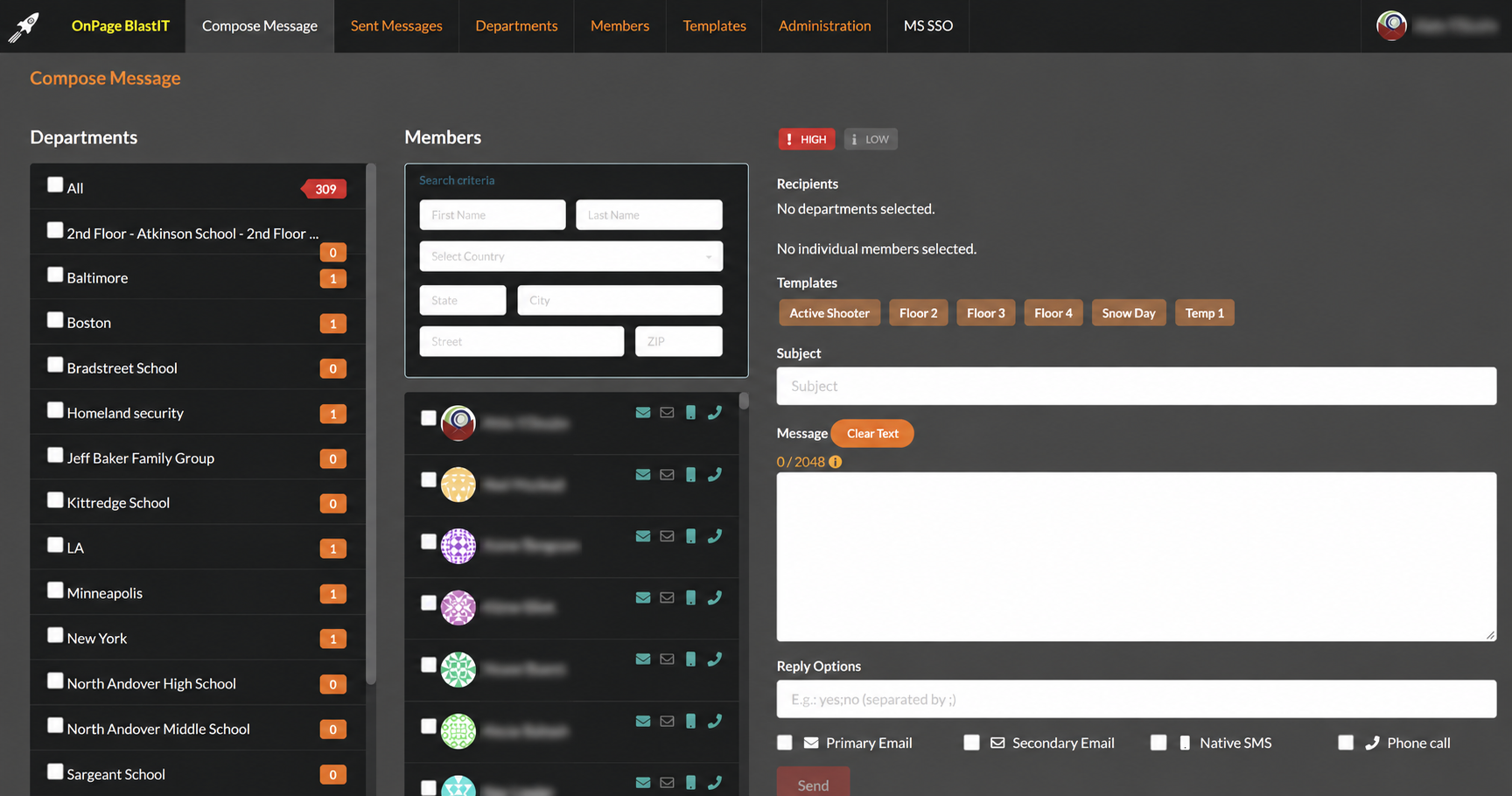
What are reply option?
Predefined responses that allows the recipient to easiely select and reply to the message.
Can I send to multiple departments at the same time?
Yes, you select to send to a combination of groups and individual recipients. There is no limit to how
many recipient can be sent to at a given time.
Can I search for specific members to send to?
Yes. You can use the members search section window to find the specific member you are looking to
send the message to. You can search by names, country, city, street etc.
Sent Messages Tab
• Click on the Sent Messages Tab
• Click on the avatar next to message you want to see statuses for